
This blog details the step-by-step process required to set up a coupled thermal analysis by importing the heat transfer coefficient (HTC) from your AEDT Icepak simulation directly into Ansys Mechanical. The procedure shown here can also be used to export other thermal and flow variables, including temperature and pressure.
Multiphysics Simulation Challenges in Electronics Cooling
Multiphysics simulation is essential for modern electronics cooling because thermal performance is intrinsically linked to other physical domains. The primary challenge lies in accurately coupling these phenomena, most notably the Electro-Thermal (Joule heating from current flow) and Thermo-Mechanical (stress and warpage from thermal expansion) effects. Furthermore, models are complicated by multiscale issues, where phenomena must be resolved simultaneously from the small scale of an IC die (microns) up to the system level (meters), all while managing the simplification of complex CAD geometry and ensuring numerical accuracy and stability when coupling the physics. In this blog, we will address how to face these challenges by using AEDT Icepak for electronics cooling and Ansys Mechanical for thermal analysis. We will describe how to use the results from AEDT Icepak as a starting point for the thermal analysis in Ansys Mechanical.
Engineering Solution
Geometry and Boundary Conditions:
For this demo, we will use a simple cold plate geometry with three heat sources. The case will be solved in a vacuum environment, so the only fluid present is the fluid flowing through the cold plate. More detailed information is shown in the figure below.
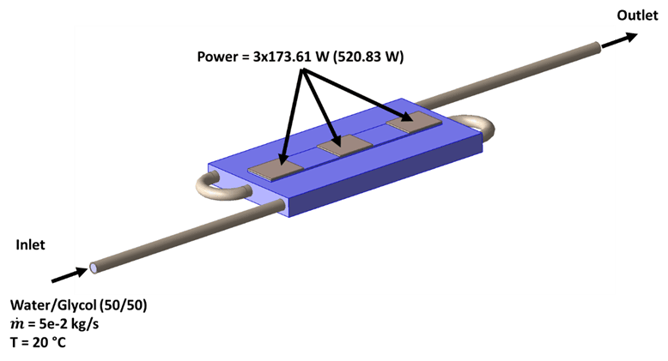
This blog is focused on the steps to export the heat transfer coefficient from your AEDT Icepak simulation. You can check the video and the files attached to this blog to learn more about the simulation setup.
Export Heat Transfer Coefficient using the Calculator Tool in AEDT Icepak:
In order to export the HTC values, we need to use the Field Calculator tool in Icepak. We will assume that you already have the Icepak simulation finished and ready for postprocessing.
The first step is to access the field calculator by clicking on Icepak in the toolbar, then Fields, and finally Calculator.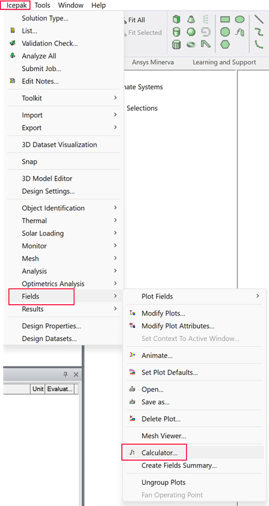
Having the Fields Calculator tool open, follow the next step in order:
- Click in Quantity and select the Heat Transfer Coefficient variable.
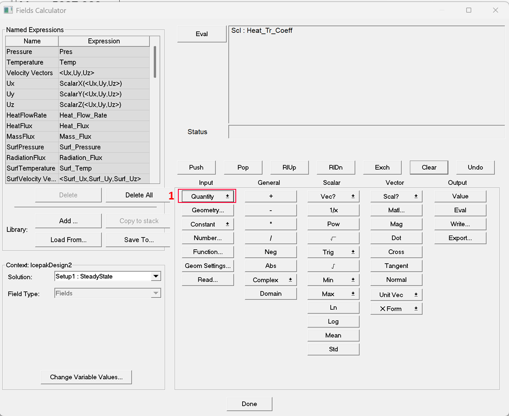
- Click in Geometry and look for the surface from which you want to extract the heat transfer coefficient.
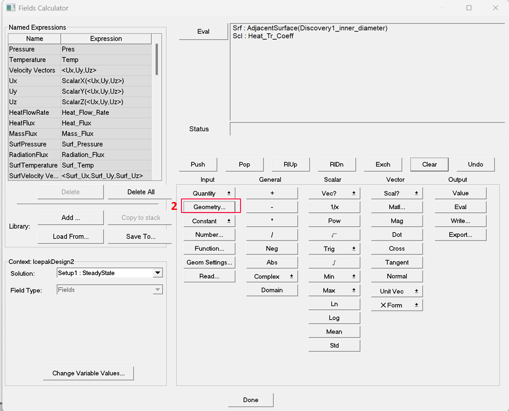
- Then click on mean or std. Don’t worry about this at this point. What we want is to create an expression in which the Heat transfer coefficient is calculated on the surface.
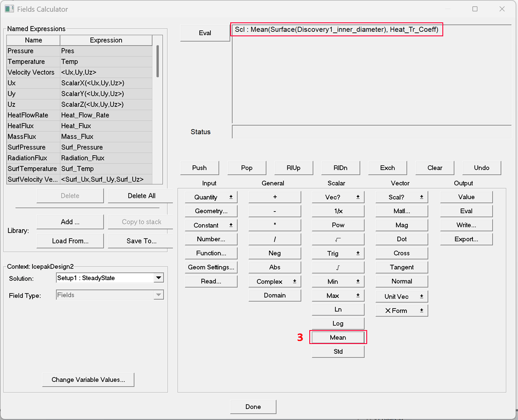
- Now click on Undo. This will delete the mean function and will leave an expression in which the heat transfer coefficient is evaluated on the surface.
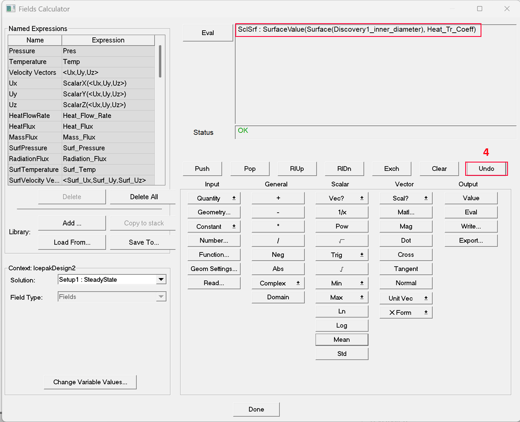
- The last step is to export the field with the Write option. This process will create a .fld file, which we need to further modify to be able to read in Ansys Mechanical.
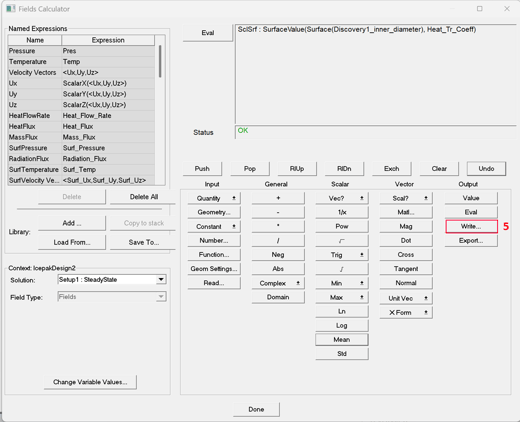
- The file exported looks similar to the image shown below. However, this file is not ready to be read by Ansys Mechanical. We need to create a .csv file based on the data of the .fld file.
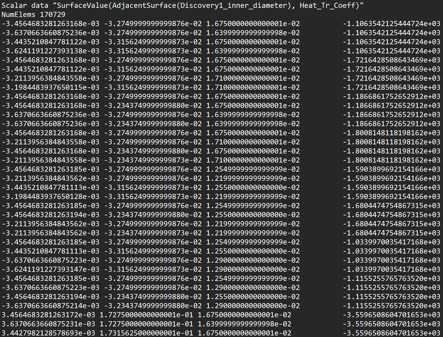
- We need to do four specific activities/modifications to the information from the .fld file:
- We have to create a .csv file with the information. We can either copy the data into an Excel file or create a Python script to do it.
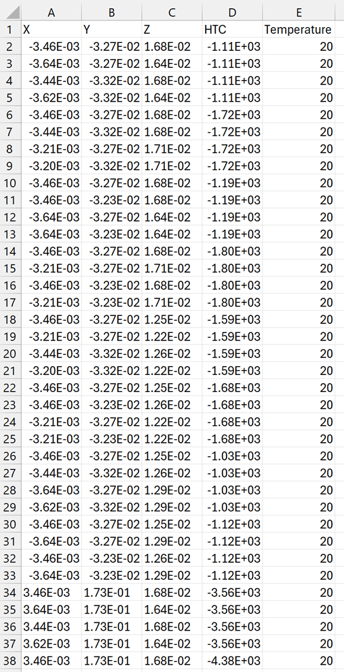
- The new .csv file needs to contain an initial row with the names of the variables. Note: All the variables imported from Icepak are in the default Icepak units.
- We have to transform all the heat transfer coefficient values to positive values.
- We have to add an additional temperature column with the ambient temperature listed for each group of coordinates and the heat transfer coefficients.
At the end, the file should look like this.
Import Heat Transfer Coefficient in Ansys Mechanical:
For this section, we will assume you already have your Thermal Mechanical project with the geometry, the mesh, and the boundary conditions ready.
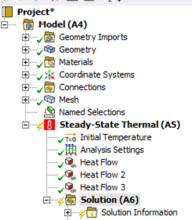
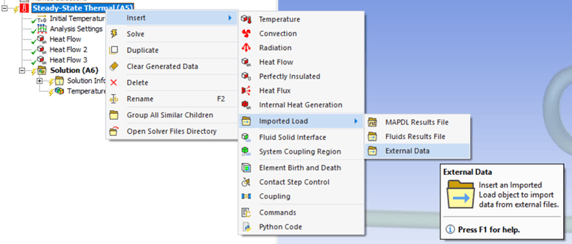
- The first step is to right-click in our system analysis, select Insert, Imported Load, and finally External Data.
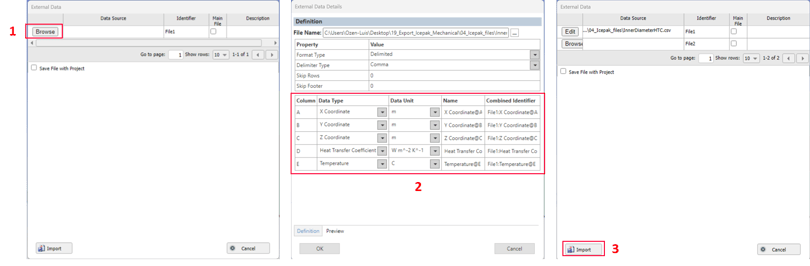
- In the external data window, click in Browse, and look for the .csv file. When you read the .csv file, you need to assign the right data type and data unit for each column. Finally, you click on Import.
- Now we need to right-click in the Imported Load folder, Insert, and Convection Coefficient.
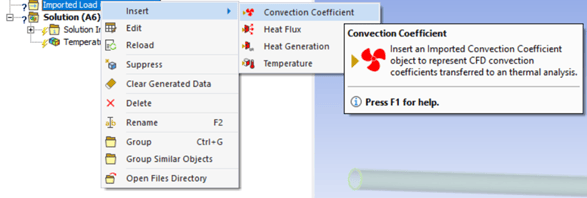
- We need to select the faces that will map the heat transfer coefficient and click on apply.
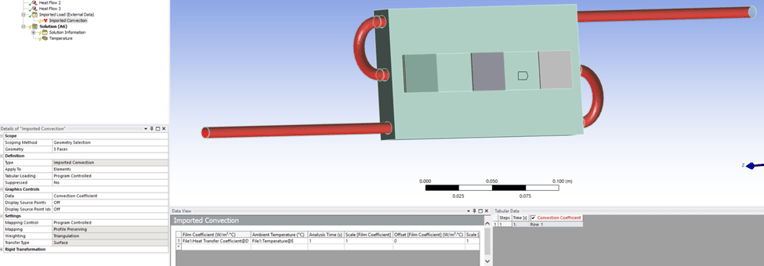
- Finally, we right-click in the Imported Convection task and click on import load.
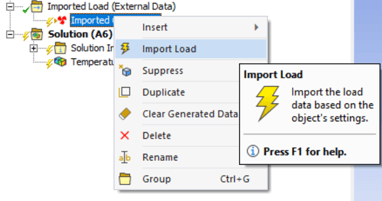
After the heat transfer coefficient is imported, we can run the Ansys Mechanical analysis.
Results:
The comparative analysis between temperature distribution results from the AEDT Icepak (CFD) and Ansys Mechanical (FEA) solutions yielded highly consistent results, providing strong confidence in the predicted thermal performance for this demo design.
The maximum temperature calculated was similar in both simulations, 56.47 °C in Icepak vs 56.82 °C in Ansys Mechanical, validating the thermal results for our problem. Beyond the peak value, the overall thermal gradient and temperature distribution patterns showed a strong correlation, as shown in the thermal contour comparison below.
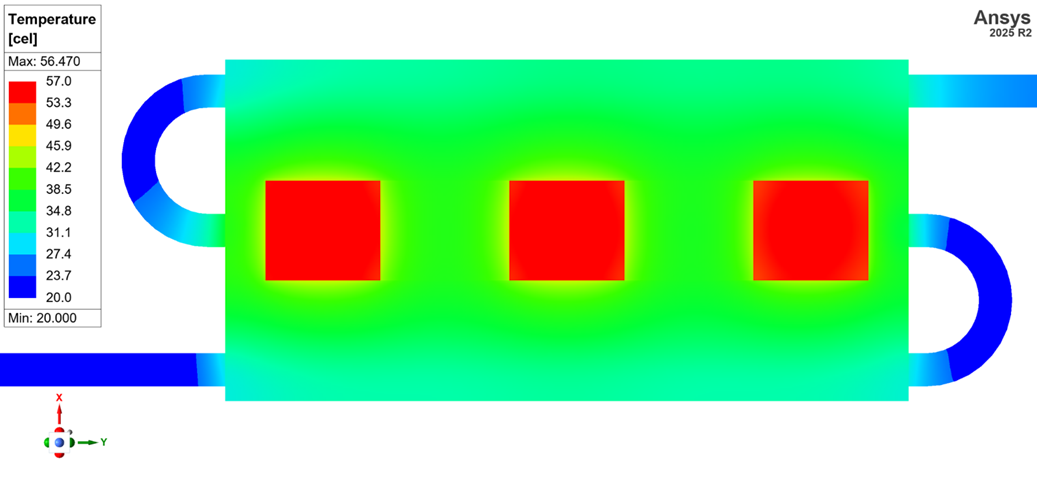
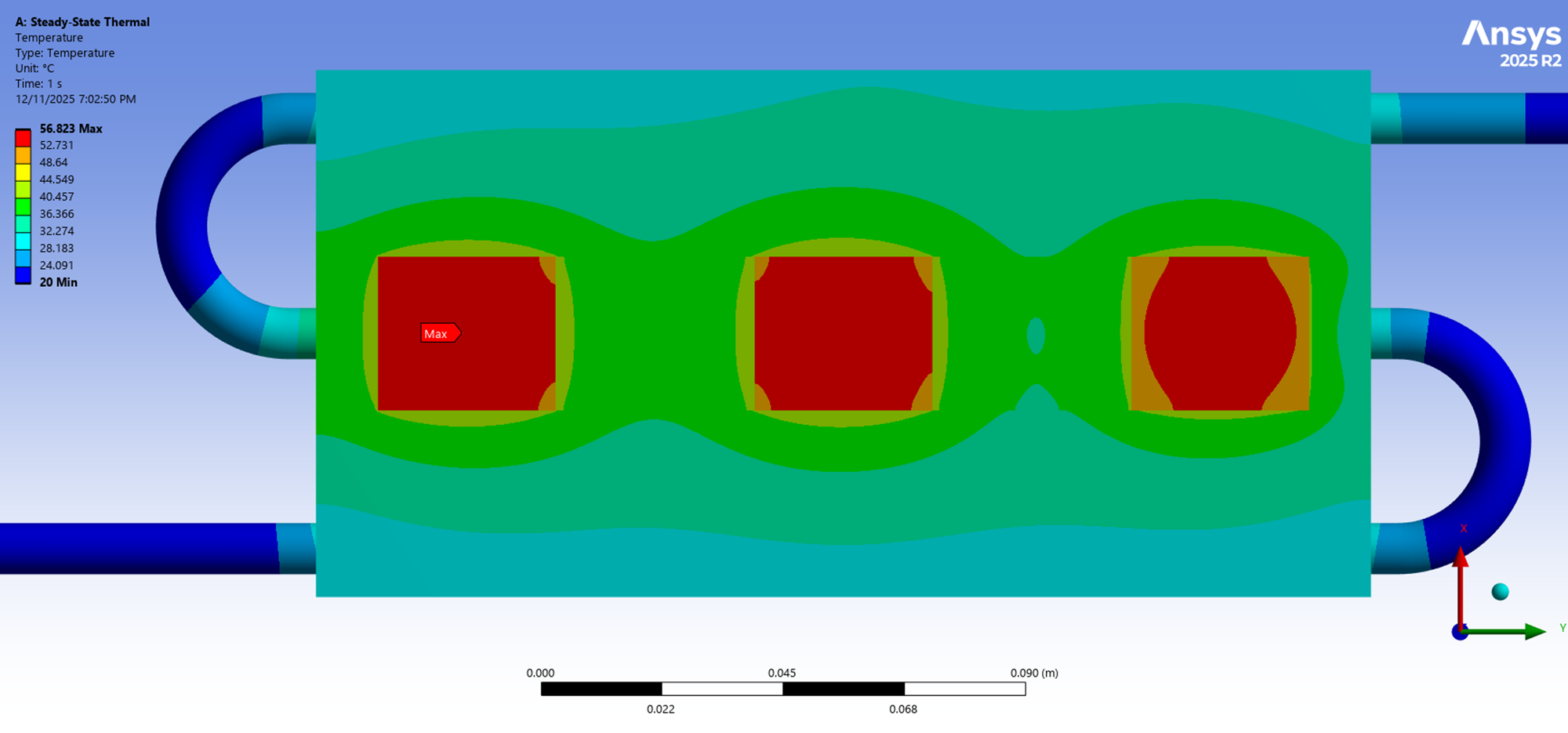
Minor solution variations are expected when comparing results across different types of solvers. Differences arise due to the difference in mesh strategies, with Icepak employing a volume-based mesh, while Ansys Mechanical employs a node-based element mesh, leading to distinct ways of modeling and treating the geometry boundaries. In addition, the underlying mathematical discretization techniques used by the respective solvers will always introduce minor, localized variations in the final calculated values.
Conclusion:
The procedure shown here shows how to export the heat transfer coefficient from AEDT Icepak to Ansys Mechanical. However, this procedure can also be used to export other thermal and flow variables, including temperature and pressure. These fields can be used as boundary conditions to do thermal, static, or coupled analysis in Ansys Mechanical
Step-by-step video:
You can download the Icepak case files here and the Mechanical case files here.
Ansys Solution Benefits
Ansys provides powerful thermal simulation capabilities for semiconductor design, enabling engineers to analyze geometry configurations, material distributions, interconnect types, underfill properties, and substrate thickness—all without building physical prototypes. Ansys has specialized tools like Icepak for electronics cooling, SiWave for signal and power integrity, Maxwell and HFSS for electromagnetic analysis, Mechanical for structural and thermal simulations, Ansys Fluent for thermal and fluid simulations, and DesignXplorer and OptiSLang for design optimization and parametric evaluation, making it a comprehensive suite for multi-physics modeling and performance refinement.
Ozen Engineering expertise
Ozen Engineering Inc. leverages its extensive consulting expertise in CFD, FEA, thermal, optics, photonics, and electromagnetic simulations to achieve exceptional results across various engineering projects, addressing complex challenges like multiphase flows, erosion modeling, and channel flows using Ansys software.
We offer support, mentoring, and consulting services to enhance the performance and reliability of your hydraulic systems. Trust our proven track record to accelerate projects, optimize performance, and deliver high-quality, cost-effective results for both new and existing water control systems. For more information, please visit https://ozeninc.com.
Suggested Blogs:
- https://blog.ozeninc.com/resources/calculation-of-electronic-package-thermal-resistance-with-ansys-icepak
- https://blog.ozeninc.com/resources/ansys-icepak-and-electronic-cooling-analysis
- https://blog.ozeninc.com/resources/ansys-icepak-and-electronic-cooling-analysis-0
- https://blog.ozeninc.com/resources/ansys-icepak-and-electronic-cooling-analysis-1
- https://www.ozeninc.com/consulting/thermal-engineering-electronics-cooling/
